Close tickets when customers do not reply in SharePoint HelpDesk
Tickets awaiting a customer reply can accumulate and distract the support team from current tasks. Automatically closing these tickets after a waiting period saves agents from closing them manually.
Plumsail HelpDesk is a solution for deploying a ticketing system based on SharePoint Online. It includes HelpDesk Scheduler, which allows you to perform recurring or one-time actions on unsolved tickets updated within the last 30 days. These actions are executed on a schedule defined in a task.
In this article, you will see how to create the task that will automatically close all tickets without a reply from a customer if 3 days have passed after support specialist (agent) replied.
Create or open a task
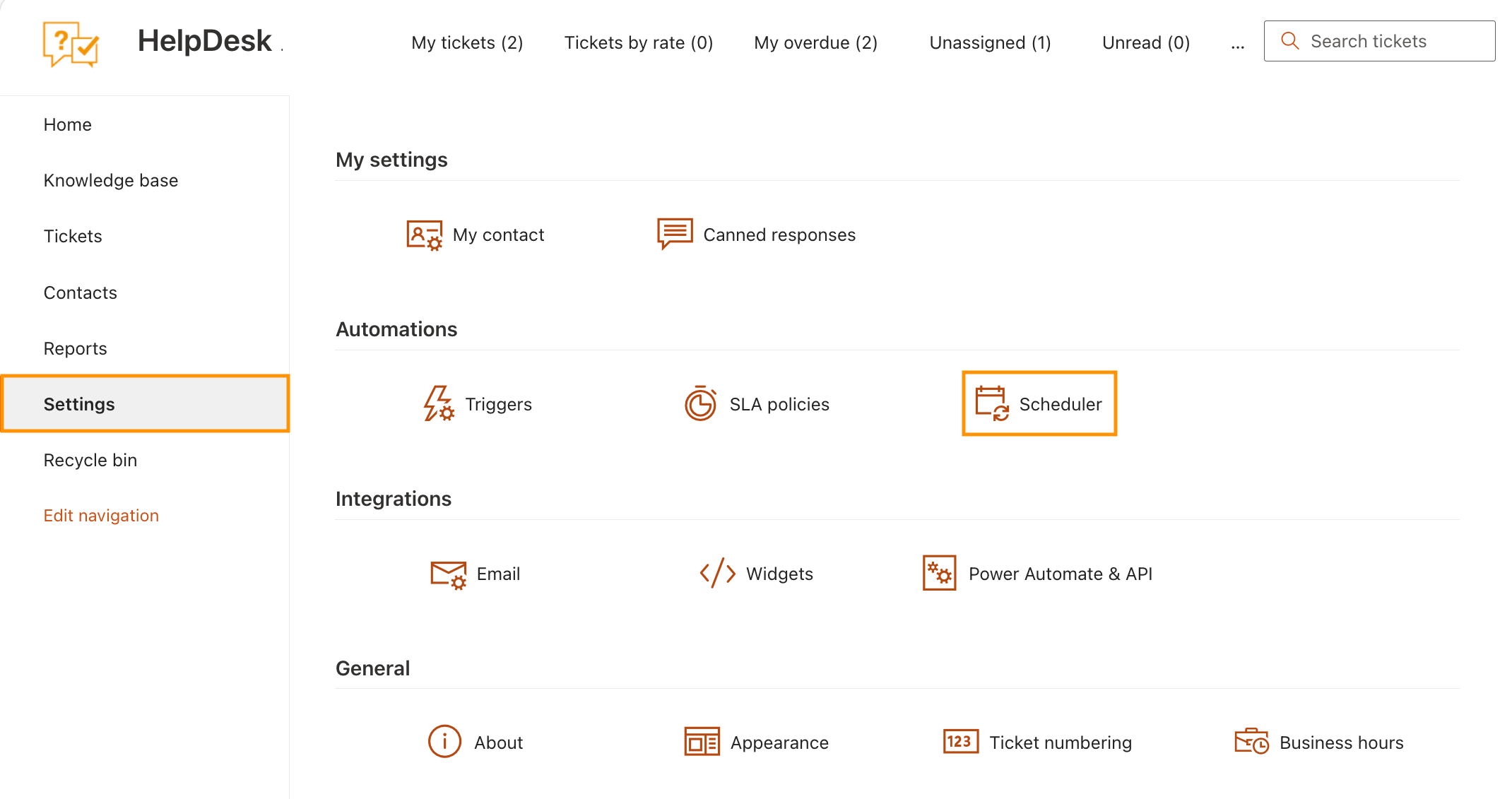
Open Settings from the left navigation menu, then select Scheduler.
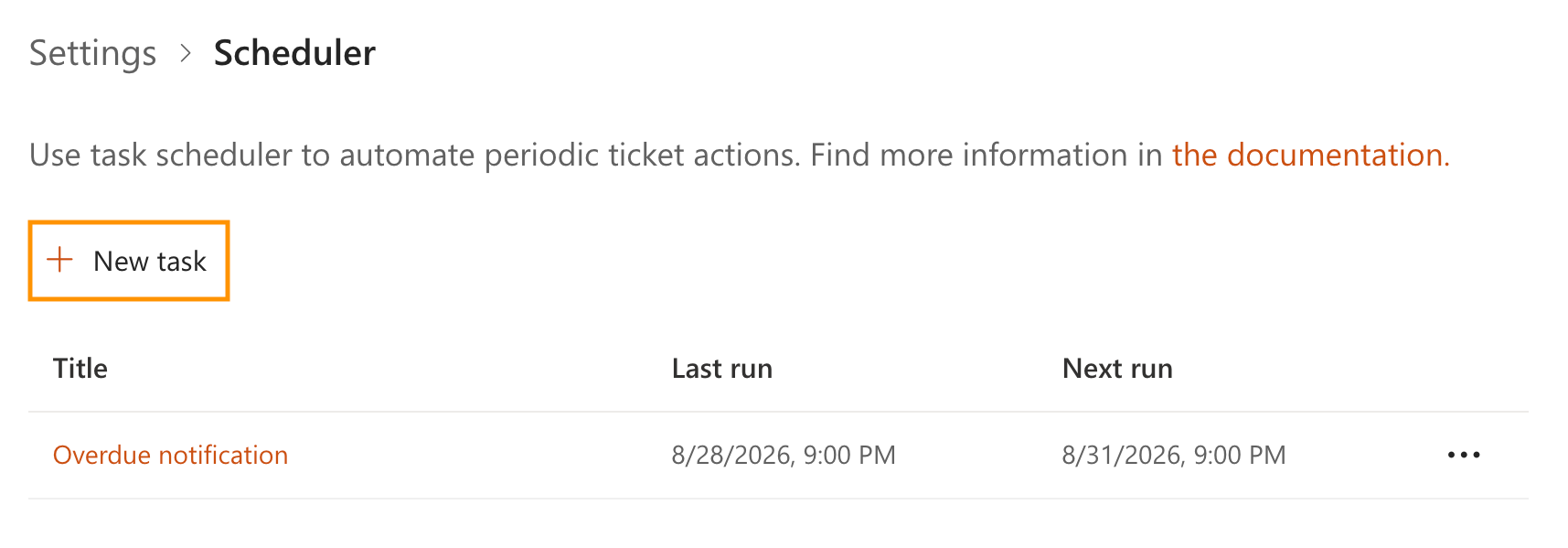
Select New task to create a scheduler task, or select an existing task’s title to edit it.
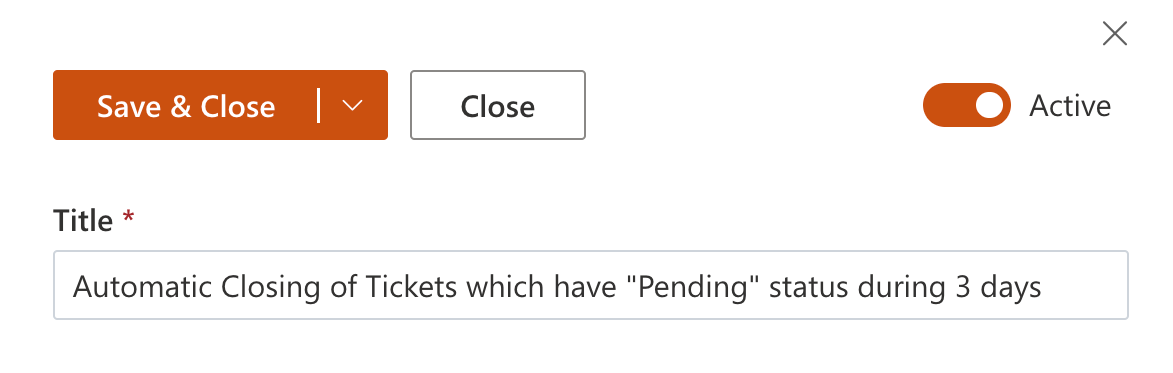
Enter a descriptive task title so that other users can understand its purpose. Ensure that Active is enabled so the task runs on schedule.
Configure the schedule
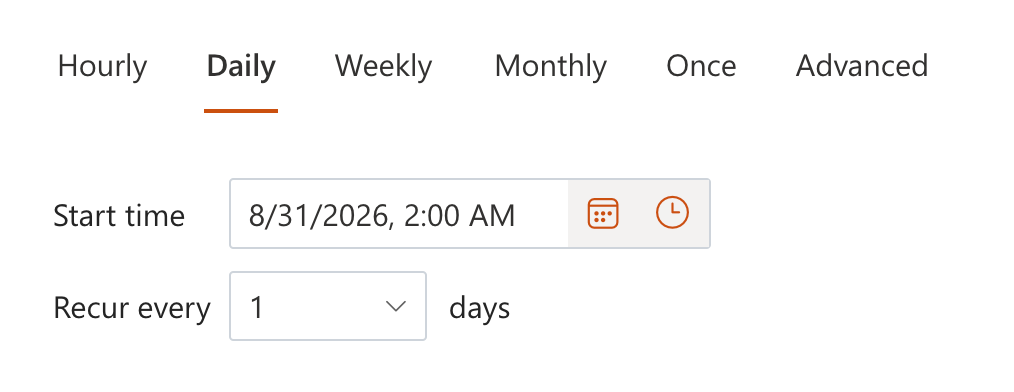
Configure when the task runs using standard scheduling options or advanced CRON syntax. In this example, select Daily, set a nighttime Start time, and set Recur every to 1 day.
Set conditions and action to close tickets
Define ticket conditions and configure actions in the Conditions and Actions blocks.

The condition block works in the same way as in triggers. After replying to a customer, agents should set the ticket status to Pending if they are waiting for a customer reply. When the customer replies, the ticket status automatically changes to In progress, so the ticket no longer matches this task’s conditions.
To find tickets that are still waiting for a customer reply, combine both conditions using AND:
[Ticket.Status.Title]equals'Pending'.[Ticket.Metadata.LastPendingDate]less thanAddDays(Today(), -3).
You can select [Ticket.Status.Title] from the dropdown list. To define the second condition, use advanced condition syntax. The Today() function returns the current date, and the AddDays() function allows you to add an arbitrary number of days to the chosen date. To subtract 3 days from the current date, pass -3 to AddDays: AddDays(Today(), -3).
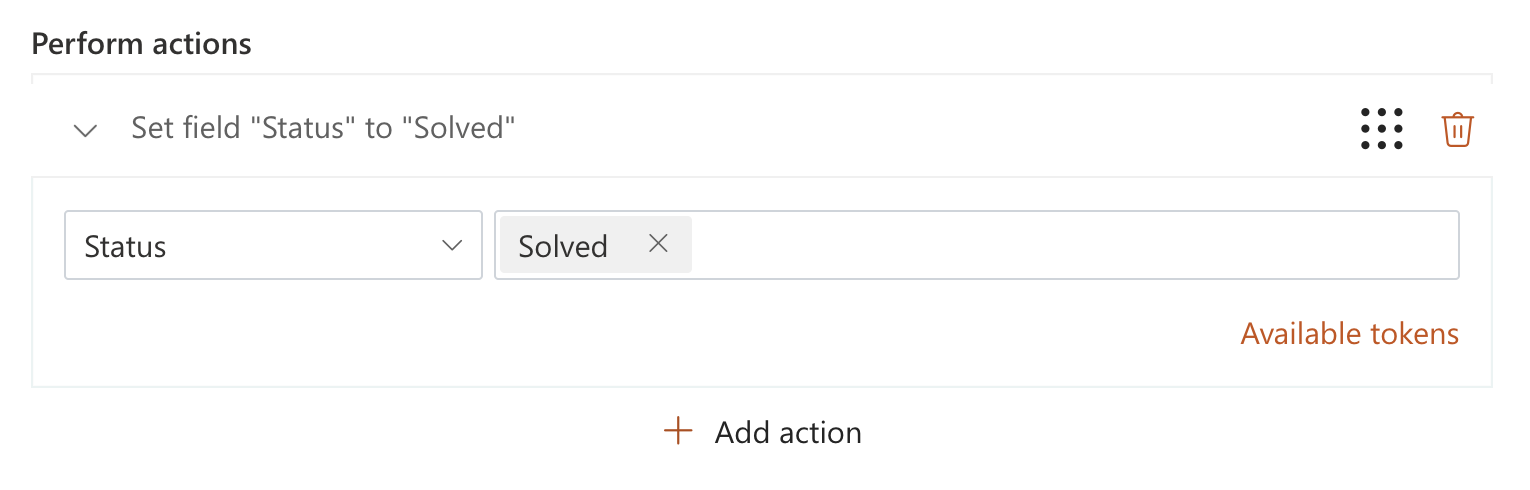
Finally, choose a Set field action in the Actions block, select Status, and set its value to Solved. Select Save & Close to save the task.
Review execution logs
Review task executions under Execution logs. If you need, you can export the logs.

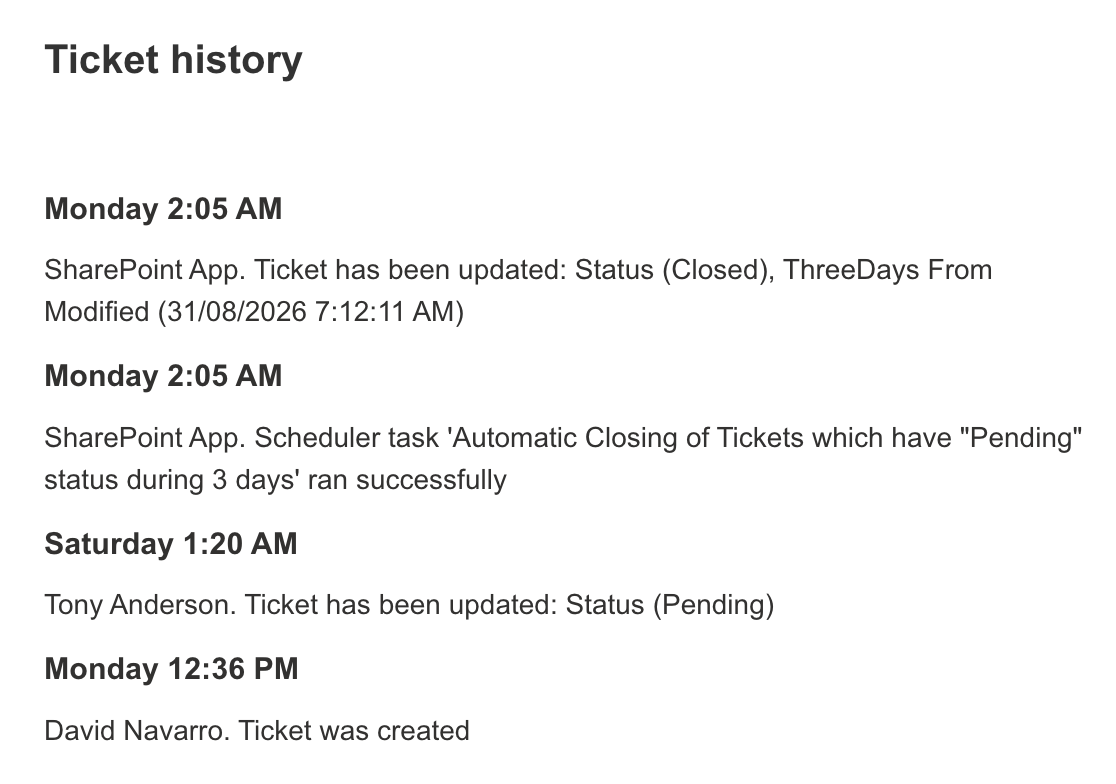
Enable Record runs to ticket history to add scheduler run information to the ticket history.
Summary
The scheduler will now run at the configured time and set matching Pending tickets to Solved. Review the execution logs and ticket history to confirm that the task processes the expected tickets.